
Slate’s Pen Essentials
From the Original Pages
Click a page to enlarge · Alt-click to open the full issue
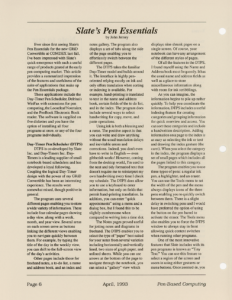
Ever since first seeing Slate’s Pen Essentials for the new GRiD Convertible at COMDEX last fall, I’ve been impressed with Slate’s quick emergence with such a useful range of products geared at the early pen computing market. This article provides a summarized impression of the features and usefulness of the suite of applications that make up the Pen Essentials package.
These applications include the Day-Timer Pen Scheduler, Delrina’s WinFax with extensions for pen computing, the Looseleaf Notetaker, and the PenBook Electronic Book reader. The software is supplied on five diskettes and you have the option of installing all four programs at once, or any of the four programs individually.
Day-Timer Pen Scheduler (DTPS)
DTPS is co-developed by Slate Inc. and Day-Timers Inc. Day-Timers is a leading supplier of small notebook-based schedulers and has developed a loyal following. Coupling the logical Day-Timer design with the power of my GRiD Convertible has been an interesting experience. The results were somewhat mixed, though positive in general.
The program uses several different pages enabling you to store a wide variety of information. These include four calendar pages showing a day view, along with a week, month, and year view. Several areas on each screen serve as buttons linking the different views enabling you to navigate quickly between them. For example, by typing the title of the day in the weekly view, you can shift to the full-screen view of the day’s activities.
Other pages include those for freehand notes, a to-do list, a name and address book, and an index and notes gallery. The program also displays a set of tabs along the side of the page enabling you to effortlessly switch between the different pages.
The DTPS takes the familiar Day-Timer model and builds around it. The interface is highly pen-oriented relying mostly on ink and only offers translation when sorting or indexing is available. For example, hand-printing is translated to text in the name and address book, certain fields of the to do list, and in the index. The program does include several ways to select handwriting for copy, move, and paste operations.
Using ink is both a blessing and a curse. The positive aspect is that you can write and draw anything without the usual translation delays and inevitable errors and corrections. Indeed, you don’t even have to write in English — even gibberish works! However, coming from the desktop world, I’m used to the neat and tidy formatted text that doesn’t require me to reinterpret my own handwriting every time I check my schedule. The DTPS does allow you to use a keyboard to enter information, but only on fields that permit hand-printing translation. In addition, you can enter “quick appointments” using a menu and a dialog box, but I found this to be slightly cumbersome when compared to writing into a time slot.
The Notes pages proved useful for jotting notes and diagrams in freehand. The DTPS enables you to select the type of “paper” best suited for your notes from several varieties including horizontally and vertically lined, two sizes of graph paper, and unlined sheets. While you can use arrows at the bottom of the page to navigate through the notebook, you can select a “gallery” view which displays nine shrunk pages on a single screen. Of course, your notebook can have any arrangement of the different styles of pages.
Of all the features in the DTPS, I found myself using the Name and Address book most frequently. It has the usual name and address fields as well as a place to store miscellaneous information along with room for ink scribblings.
As you can imagine, the information begins to pile up rather quickly. To help you coordinate the information, DTPS includes a useful indexing feature for creating categories and grouping information for quick overview and access. You can sort these categories and include a handwritten description. Adding information on a page to the index is as easy as selecting the ink or text and drawing the index gesture (the caret). When you select the category in the index, the program displays a set of small pages which includes all the pages linked to this category.
The program enables you to use three types of pens: a regular ink pen, a highlighter, and an eraser. You can use the Tools menu to set the width of the pen and the menu always displays icons of the three pens enabling you to quickly switch between them. There is a slight delay in switching pens and I would have preferred the option of using the button on the pen barrel to activate the eraser. The Tools menu also enables you to force the DTPS window to always stay in front allowing quick context switches when running other programs.
One of the most innovative features that Slate includes with its pen programs is known as “Tiny Text.” You can use this feature to select a region of the screen and zoom in using either gestures or menu buttons. Once zoomed-in, you can continue to write and enter information. When completed, you zoom out causing the new ink to be displayed as tiny writing, hence the name. For example, you can write the word “Hello” in normal size, zoom in, and then write additional information inside the “o.” This feature greatly extends the useful writing area on your electronic page and enables you to also hide sensitive notes from casual glances.
My first impression of the DTPS manual was very positive. The first chapter makes very effective use of annotated drawings of all the major screens to give users a thumbnail sketch of most of the features in the program. I was surprised to discover that I had a reasonable understanding of the program after reading only 11 pages! In addition, the help system included with the program is complete and includes a useful “How Do I…?” menu option which covers many of the basic features of scheduling and note taking.
The program allows you to store more than one schedule, each saved with a different name. This feature is useful for people who prefer to separate their work activities from their personal life. It is also useful if the machine is shared among several users. However, the program does require you to explicitly save your notes and entries at regular intervals. I found this to be quite undesirable and unlike other personal schedulers I’ve used.
The most obvious limitation of the DTPS/Convertible combination has nothing to do with the software and everything to do with the computer. Unfortunately, the limited battery life of roughly two hours and, to a lesser extent, the weight of the Convertible does not make this a thoroughly workable solution. After entering my schedule and phone information, I was still forced on several occasions to consult my paper-based system when the battery was depleted. This, however, should be less of a problem when the DTPS is combined with some of the newer and longer-lasting machines now becoming available.
Delrina WinFax Pen
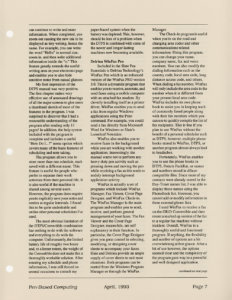
Included in the Slate Pen Essentials is Delrina Technology’s WinFax Pen which is an enhanced version of the WinFax PRO version 3.0. This is a dynamite program that enables you to receive, annotate, and send faxes using a mobile computer with an attached fax modem. By cleverly installing itself as a printer driver, WinFax enables you to send a fax from regular Windows applications using the Print command. For example, you could send a fax directly from Microsoft Word for Windows or Slate’s Looseleaf Notetaker.
WinFax also enables you to receive faxes in the background while you are working with another application. Interestingly, the manual warns not to perform any heavy-duty pen activity such as pressing down and moving the pen while receiving a fax as this tends to unduly interrupt background application activity.
WinFax is actually a set of programs which include WinFax Manager, Fax Viewer, Cover Page Designer, and WinFax Check-in. The WinFax Manager is the main program and enables you to send, receive, and perform general management of your faxes. The Fax Viewer and the Cover Page Designer, meanwhile, are self explanatory in their function. In particular, the Cover Page Designer gives you great control in selecting, modifying, or designing cover sheets to accompany your faxes. Slate and Delrina provide an ample supply of cover sheets to suit most situations. Both programs can be started from the Windows Program Manager or through the WinFax Manager.
The Check-in program is useful when you’re on the road and changing area codes and other communications related information. Using this program, you can change your name, company name, fax and voice numbers. You can also modify the dialing information such as the country code, local area code, long distance access code, and others. When dialing a fax number, WinFax will only include the area code in the number when it is different from your present local area code.
WinFax includes its own phone book to assist you in keeping track of commonly faxed people along with their fax numbers which you can use to quickly compile the list of fax recipients. This is fine if you plan to use WinFax without the benefit of a personal scheduler such as DTPS, however, multiple phone books stored in WinFax, DTPS, or another program almost always lead to headaches.
Fortunately, WinFax enables you to use the phone books in DTPS, Polaris PackRat, or names and numbers stored in dBase-compatible files. Since most of my contacts were already stored in the Day-Timer names list, I was able to display these names using the PhoneBook list. However, you cannot add or modify information in these external phone lists.
I used WinFax to receive a fax on the GRiD Convertible and then resent a marked up version of the fax to a regular fax machine without incident. Overall, WinFax is a thoroughly useful and functional program. If anything, the flexibility and number of options are a bit overwhelming at first glance. After a bit of use however, the options seemed clear and the complexity of the program gave way to a powerful and well designed application.
Looseleaf Notetaker
No $3000 pen computer would be complete without a program that simulates (and improves upon) a two dollar pad of paper. Looseleaf Notetaker is that program. The program uses a looseleaf model and captures everything that you write on the screen in ink. This makes the program useful for both written and drawn information. There is no translation involved, and therefore none of the frustrating delays or errors associated with handwriting recognition.
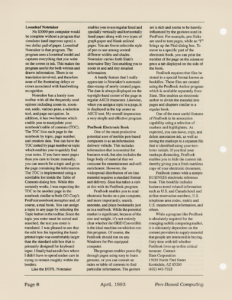
Notetaker has a handy icon toolbar with all the frequently used options including zoom-in, zoom-out, undo, various pens, a selection tool, and page navigation. In addition, it has two buttons which enable you to manipulate your notebook’s table of contents (TOC). The TOC lists each page in the notebook by topic, page number, and creation date. You can have the TOC sorted by page number or topic which enables you to quickly find your notes. If you have more pages than you care to locate manually, you can search for a topic and go to the page containing the information. The TOC is implemented using a scrollable list inside the Table of Contents dialog box. While this certainly works, I was expecting the TOC to be another page in the notebook similar to both GO Corp’s PenPoint notebook metaphor and, of course, a real book. You can assign a topic to any page by selecting the Topic button in the toolbar. Since the topic you enter must be sorted and searched, the text you enter is translated. I was pleased to see that the edit box for inputting the hand-printed topic was comfortably larger than the standard edit box that is primarily designed for keyboard input. I finally had an edit box where I didn’t have to spend undue care in trying to remain roughly within the borders.
Like the DTPS, Notetaker enables you to use regular lined and specially vertically and horizontally lined paper along with two types of graph paper and blank unlined paper. You are free to select the style of pen to use among several different widths and shades. Notetaker carries forth Slate’s innovative Tiny Text enabling you to zoom in and add tiny detailed information.
A handy feature that I really appreciate is Notetaker’s automatic date-stamp of newly created pages. The date is always displayed on the top right-hand corner of the page in regular ASCII characters. Likewise, when you assign a topic to a page, it is displayed in the top center as ASCII text. My overall impression: a very simple and effective program.
PenBook Electronic Book
One of the most productive potential uses of mobile pen-based computers is as an information delivery vehicle. This includes information that is essential for business work, but also includes the large body of material that we consume for entertainment and self-enrichment. However, the widespread distribution of on-line material requires a standard format and delivery. Slate has taken a stab at this with its PenBook program.
PenBook enables you to read electronic books on a pen computer, and more importantly, search, annotate, and place bookmarks just as in a real book. While the potential market is significant, because of the size and weight, it’s not entirely clear whether the GRiD Convertible is the ideal machine on which to run this program. Of course, the PenBook should run on any Windows for Pen equipped computer.
The program enables you to flip through pages using easy to learn gestures, or you can consult an index or table of contents to find particular information. The gesture set is rich and seems to be heavily influenced by the gestures used in PenPoint. For example, pen flicks are used to turn pages, while an “F” brings up the Find dialog box. To move to a specific part of the electronic book, you can print the number of the page on the screen or press a tab displayed on the side of the book.
PenBook requires that files be stored in a special format known as bookfiles. These files are created using the PenBook Author program which is available separately from Slate. This enables an electronic author to divide the material into pages and chapters similar to a regular book.
One of the most useful features of PenBook is its annotation capability using a selection of markers and highlighters. As expected, you can move, copy, and delete annotation ink, as well as saving the markups to a separate file that is identified using your two-letter initials. If you find your markups distracting, PenBook enables you to hide the current ink thereby giving you a fresh markless copy of your electronic document.
PenBook comes with a sample BUSINESS electronic reference book. This bookfile includes business travel related information such as U.S. and Canada hotel and airline reservation numbers, U.S. telephone area codes, metric and U.S. measurement information, and others.
While a program like PenBook is absolutely required for the emerging mobile computing market, it is ultimately dependent on the content providers to supply material that people are interested in buying. Only time with tell whether PenBook lives up to this critical measure. Contact:
Slate Corporation
15035 North 73rd Street
Scottsdale, AZ 85260
(602) 443-7322
Transcribed from Pen-Based Computing, Volume 3, Number 2 — April 1993. Pages 6, 7, 8.